

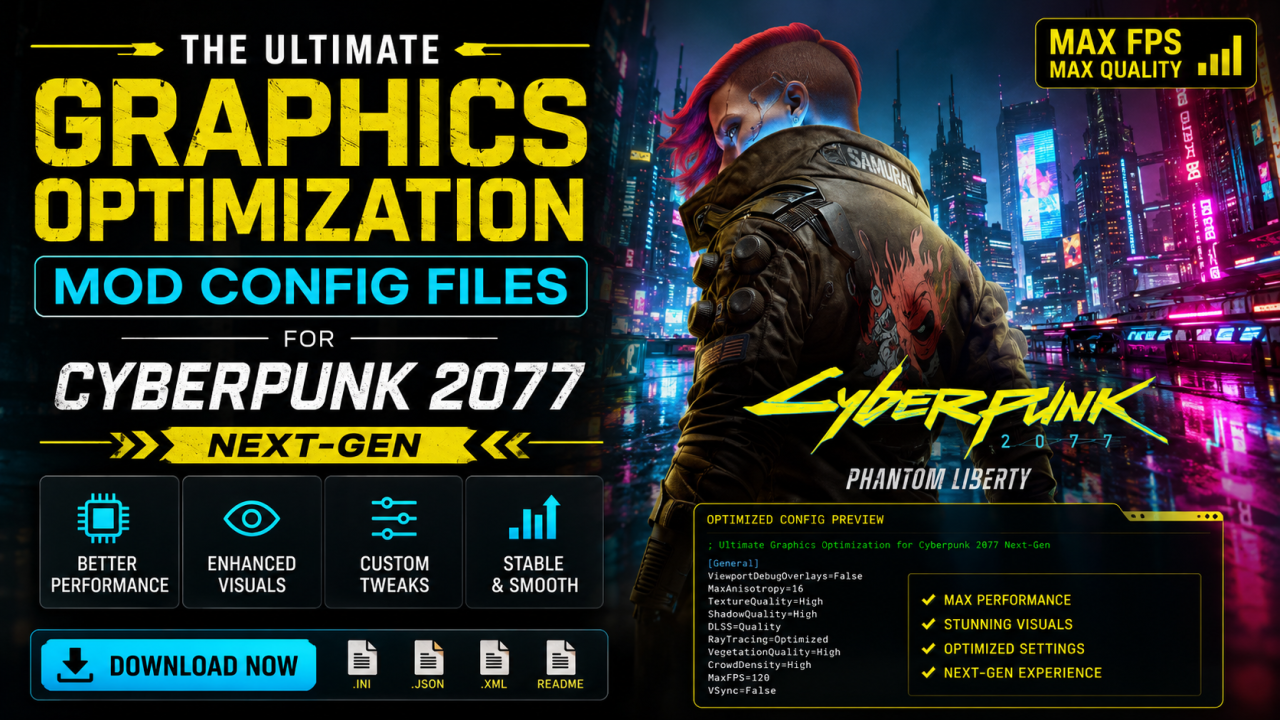
The Ultimate Graphics Optimization Mod Config Files for Cyberpunk 2077 Next-Gen
When Cyberpunk 2077 was first launched, players were blown away by its ambitious vision of Night City. But for many PC gamers, that vision came with a cost—performance instability, inconsistent frame rates, and heavy GPU demands that even high-end systems struggled to handle.
As the game evolved into its next-gen version, so did the modding community. Today, graphics optimization mod config files have become essential tools for players who want cinematic visuals without sacrificing smooth gameplay.
Instead of blindly lowering settings or upgrading expensive hardware, these configuration files fine-tune the engine itself—balancing lighting, shadows, ray tracing, crowd density, and texture streaming.
This guide breaks down how optimization mods work, how to install them safely, and how to achieve the best possible performance-to-quality ratio in Cyberpunk 2077 next-gen.
What Are Graphics Optimization Mod Config Files?
Mod config files are customized configuration settings that adjust hidden or advanced parameters inside Cyberpunk 2077. Instead of using only in-game menus, these files modify deeper engine behavior.
They typically control:
- Ray tracing quality levels
- Shadow rendering distance
- LOD (Level of Detail) scaling
- NPC density and AI load
- Texture streaming budget
- GPU memory allocation
- Post-processing effects
Why Optimization Mods Matter in Cyberpunk 2077
Night City is one of the most graphically demanding environments in modern gaming. Without optimization, even powerful GPUs can experience:
- Frame drops in crowded areas
- Stuttering during fast travel
- VRAM overload warnings
- Inconsistent ray tracing performance
Optimization mods solve these issues by balancing visuals and system load intelligently.
Comparison: Default Settings vs Optimized Config Files
| Type | Performance | Visual Quality | Stability | Customization |
|---|---|---|---|---|
| Default Settings | Inconsistent | High but heavy | Medium | Limited |
| Low Settings | High FPS | Low visual fidelity | Stable | Basic |
| Optimized Mod Config | Balanced | Near-ultra visuals | Highly stable | Advanced control |
Step-by-Step Installation Guide
- Backup Game Files
Always create a backup before applying any mod configuration. - Download Trusted Config Mod
Use reputable modding platforms and verified creators. - Locate Cyberpunk 2077 Config Folder
Usually found inside the user AppData directory. - Replace or Edit Existing Config Files
Carefully overwrite only specified parameters. - Launch Game and Test Performance
Monitor FPS and stability in different environments. - Fine-Tune Settings
Adjust ray tracing, shadows, and crowd density as needed.
Symptoms of Poor Optimization
- Frequent FPS drops
- Screen tearing
- Delayed texture loading
- GPU overheating
- Stuttering in dense city areas
Common Causes of Performance Issues
- Overloaded ray tracing settings
- Unoptimized texture streaming
- High NPC density settings
- Incorrect driver configuration
- Outdated GPU drivers
Solutions for Better Performance
- Use optimized mod config presets
- Update GPU drivers regularly
- Disable unnecessary background processes
- Balance ray tracing with DLSS/FSR
- Reduce crowd density in busy areas
Common Mistakes Players Make
- Maxing all settings blindly
- Ignoring VRAM limitations
- Installing multiple conflicting mods
- Skipping performance testing
💡 Expert Tip
The best Cyberpunk 2077 experience is not achieved by maxing every setting, but by finding the balance between lighting realism and GPU efficiency. Start with a balanced config and gradually increase visual intensity.
Advanced Optimization Techniques
Advanced users combine config mods with:
- DLSS / FSR upscaling
- Custom reshade presets
- Texture optimization packs
- Frame generation technologies
- CPU/GPU undervolting
FAQ
Q: Are mod config files safe?
Yes, if downloaded from trusted modding communities.
Q: Can they improve FPS significantly?
Yes, especially in CPU/GPU-heavy areas.
Q: Do they break the game?
Not if installed correctly and backed up.
Q: Are they allowed?
Yes, single-player mods are generally safe.
Final Thoughts
Cyberpunk 2077 next-gen is one of the most visually ambitious games ever created. With the right optimization mod config files, players can transform it into a smooth, cinematic, and highly immersive experience without needing extreme hardware upgrades.
The key is not pushing visuals to the limit—but optimizing them intelligently.






Comments (0)
No comments found